Guide · Laptop, Mac & browser
Laptops and iPhones join the group, in a browser.
A Windows, Mac or Linux laptop, an iPhone or a tablet can be a member of a ZeroLink group without installing an app and without internet. Join the same Wi‑Fi, then open one address in the browser.
- Chat, photos, files
- Announcements & roll call
- Status & SOS
- Hear the walkie-talkie
Pick a way
Two ways, same result.
An Android phone as the server
One Android phone in the group opens a page for browsers. Fastest in the field: no laptop, nothing to download.
See the stepsThe portable laptop app
The laptop runs ZeroLink itself: it can create a group or join one on the post's Wi‑Fi, and other phones and laptops follow in a browser. Nothing to install: unzip and open.
Download for laptopsWay 1 · An Android phone as the server
Open the group to laptops & iPhones.
- Profile → Connection & battery → Open to laptops & iPhonesNo other phone needed first. If the phone is not in a group, pick Make a Wi‑Fi from this phone (no router), or Use the Wi‑Fi this phone is on. If it is in a group, that group is opened.
- The phone shows the steps for other devicesEach as a QR code and as text.
- Put the other device on the same Wi‑FiWi‑Fi Direct group: scan the Wi‑Fi QR on the phone that created the group (or type the network name and password shown). Command-post Wi‑Fi group: join that Wi‑Fi or hotspot.
- Scan the address QR, or type the address in a browserFor example
http://192.168.49.1:8080. Enter your name, tap the group, and type the 6-digit code if asked.
In a Wi‑Fi Direct group only the phone that created the group can open this page. Keep that phone on and nearby; one phone can serve several browsers at once.
Way 2 · The portable laptop app
Download once, runs without internet.
Java is built in, so there is nothing to install. Download it while you still have internet, and keep it on the laptop or the post's USB stick.
- Unzip, then open ZeroLinkThe browser opens by itself at
http://localhost:8080. The small window that opens with it is the server: leave it open. - Enter your name, then create or join a groupThe laptop lists the ZeroLink groups on the same Wi‑Fi. If you create one, read the 6-digit code out to the others.
- Invite other devicesTap the QR icon. Phones, iPhones or laptops on the same Wi‑Fi scan it or type the address, for example
http://192.168.1.5:8080.
Windows: “Windows protected your PC”
- Right-click the zip → Extract All…, open the
SalingJagaWebfolder and double-clickSalingJagaWeb.exe. - If the blue SmartScreen screen appears, click More info → Run anyway. It shows because the app is not signed with a paid certificate yet.
- When Windows Firewall asks, tick Private networks and click Allow access. Without it, other phones cannot open the page.
Mac: “Apple could not verify…”
- Double-click the zip to unzip it. Move
SalingJagaWeb.appto Applications (leaving it in Downloads works too). - Open it. If macOS refuses, go to System Settings → Privacy & Security, scroll down, click Open Anyway and enter your Mac password.
- When the Mac asks about incoming network connections, choose Allow.
Linux
unzip saling-jaga-web-linux.zip, then runSalingJagaWeb/bin/SalingJagaWeb.- With a firewall (e.g.
ufw), allow TCP ports 8080 and 8988 and UDP 8987 on the local network.
Intel Mac, or already have Java 11+? Use the jar (150 KB)
Download saling-jaga-web.jar and run java -jar saling-jaga-web.jar. Options: --port 8090 for another port, --en for English, --no-browser to skip opening the browser.
In the browser
It looks like the phone app.
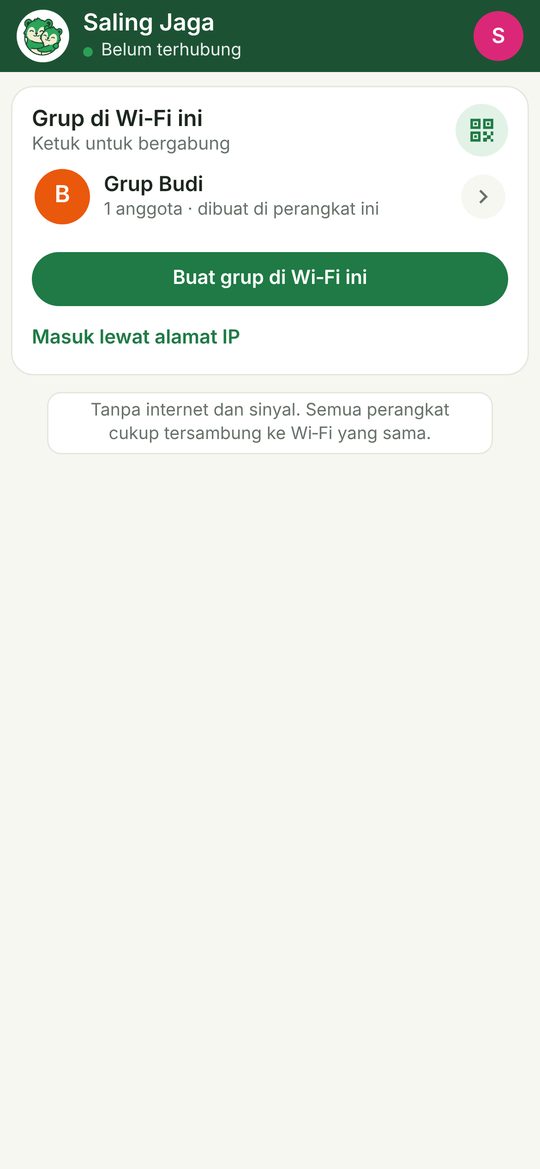
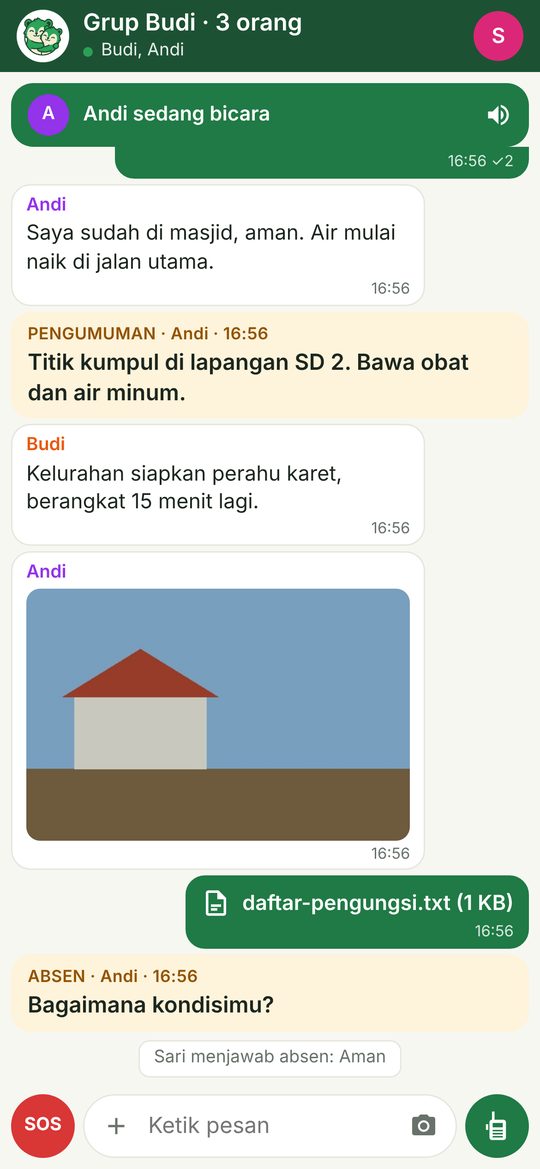
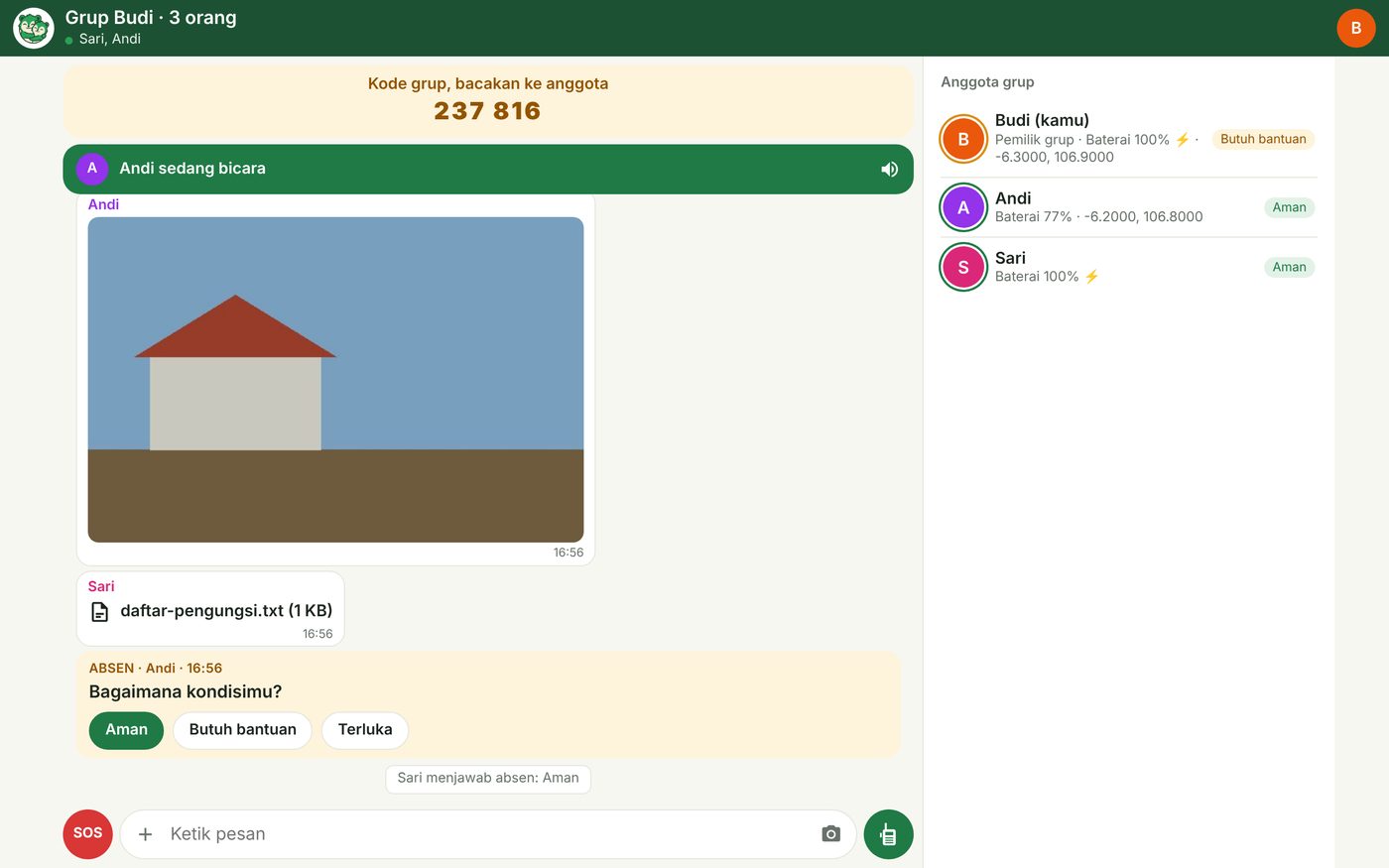
- The red SOS buttonSends an alarm to everyone. Tap again to cancel it.
- The green buttonHold to talk while the message field is empty; it turns into send once you type.
- The + buttonSend a photo or a file, write an announcement, or invite another device.
- Your avatar, top rightSet your status (Safe, Need help, Injured), see members, or leave the group.
Questions
Good to know.
Is the browser really a group member?
Yes. Each browser shows up as an ordinary member on Android phones and iPhones, with its status and battery. Messages between phones stay encrypted as in the app.
Why is there no talk button on my phone?
Browsers allow the microphone and location only on secure (https) pages or on the laptop running the app itself. On other devices the browser still hears the walkie-talkie, chats, sends photos and SOS. To talk, use the Android or iPhone app.
The page will not open on another phone.
Check that it is on the same Wi‑Fi (not mobile data), that the address has http:// and the port number, and that the laptop's firewall allows connections. Some public Wi‑Fi keeps devices apart; use a phone hotspot or the post's router instead.
Does my screen turning off drop me from the group?
Not right away. Your place is held for 5 minutes. Open the page again and missed messages are shown.
What can't the browser do yet?
Private messages, two-way calls, family search and bridge mode. Those stay in the Android and iPhone apps.

One laptop at the post, everyone connected.
Keep the laptop app and the APK on the post's USB stick before you need them.